How to print your digital guest book: from PDF to paper, step by step
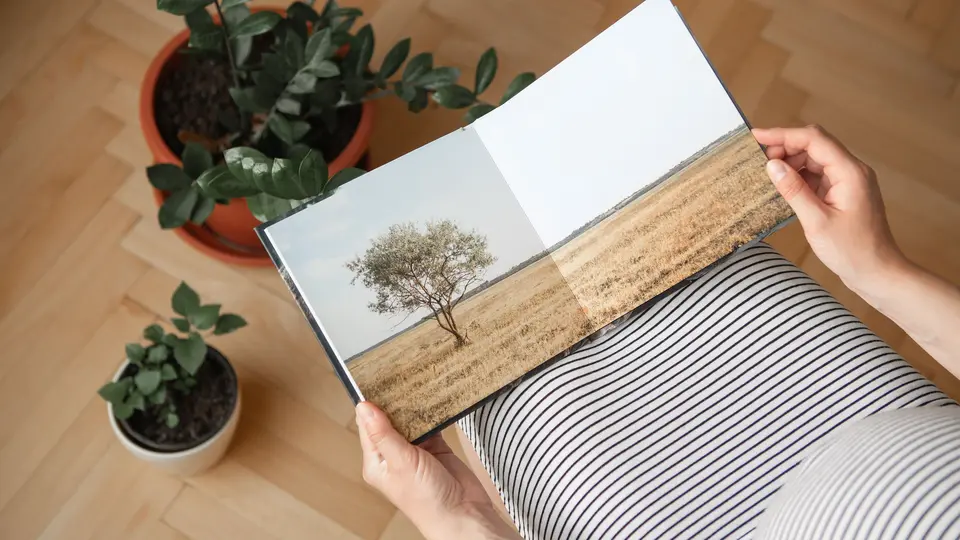
A digital guest book takes care of the hard part: getting guests to write, bringing the photos and messages into one place and making sure nothing gets lost. What is left is deciding whether you want it on paper too. Many people do: to keep it on a shelf, give it to their parents or leaf through it without a screen.
Printing it well is not complicated, but the details matter. Here is what to know before you take the PDF to a print shop.
What exactly is the PDF you get
On the Pro plan, you download the complete book as a PDF from the event dashboard: open the Guest Book card and use Download PDF. With the current layout:
- Square pages of 21 × 21 cm (about 8.3 × 8.3 in) in the standard PDF, one page per sheet. If you customized the design of the book, check the page size in the file properties before asking for a quote.
- Cover, message pages with their photos, and a closing page, with the fonts embedded in the file.
- RGB color, with no bleed and no crop marks.
- A discreet EventGuestBook watermark on the Pro plan. Premium lets you remove it.
The number of pages depends on how many messages and photos there are. For reference, the sample PDF "Clara & Alex," with 24 messages, has 21 pages. You can open it here to see the result. Its content is fictional.
The PDF is a copy of the book at the moment you download it. If more messages arrive later, download it again.
Three ways to print it
1. At home or at the office
It is the fastest option, and only suitable for a test or a very simple copy. A 21 × 21 cm page fits on a letter-size or A4 sheet, but then you have to trim, sort and bind, and the result looks homemade. Use it to check how a page looks, not for the final copy.
2. At a copy shop or digital print shop
This is the most common route for anyone who already has the PDF. Ask for a quote with the four things that matter:
- Size: square, 21 × 21 cm, with no cropping. Outside Europe, many shops work with 8 × 8 in or 8.5 × 8.5 in: ask whether they will scale the file slightly or print it at its exact size.
- Paper: matte or satin. If there are many photos, ask about paper made for photography.
- Binding: hardcover or softcover, and which type (sewn, glued). Ask which one holds up best in a book that will be opened many times.
- Page count: some bindings need a multiple of 4, and the printer can tell you whether blank pages have to be added.
And ask one more thing: whether they need bleed. The PDF does not include it. Some print shops handle that themselves and others will ask for the file in a different form. Better to know beforehand.
3. Online photo book services
Many services have you build the book in their own editor, and not all of them accept a PDF that is already laid out. If you choose one, check first that it accepts your PDF in a square format and that it shows you a proof. Either way, the quality depends on the service as much as on the file.
What to check before printing
Paper has no "undo." Spend ten minutes on this:
- Names and dates. Read the ones on the cover out loud.
- Long messages: make sure none are cut off or run past their page.
- Photos: make sure they look sharp at actual size. If one matters especially, get the original from the event's photo ZIP (available for up to 90 days after the event).
- A printed proof of a single page, on the paper you plan to use. Colors on screen and on paper are not the same, especially light backgrounds.
- That the event is finished. If messages may still come in, wait.
If you want to edit the book before printing
The PDF is not made to be edited. If you want to change text, move a photo or adjust colors before printing, the Premium plan (€99.95 per event) includes an editable PPTX for PowerPoint, which you can also import into Canva. The steps and the limits are in how to edit your guest book in Canva or PowerPoint. Pro (€49.95 per event) includes the PDF. The editable file is a Premium feature.
Keep one thing clear: Premium is a digital plan. It adds the editable PPTX and other features, but it does not include printing. EventGuestBook does not print or ship books: you take your file to the print shop you choose.
Print it or keep it digital?
You do not have to choose. The digital book stays available in your dashboard and can be shared with a link. The printed one is an object to hold. If you are unsure, here is a comparison of digital and traditional guest books. A good order: collect everything digitally first and, once the event is over, decide whether you want it on paper.
Frequently asked questions
Which plan do I need to get the PDF?
Pro (€49.95 per event), which also includes the photo ZIP, the complete digital book and the book design. The Demo plan is free, accepts 5 messages per event and does not include the PDF.
Can I print it at any print shop?
Yes, it is a PDF. Ask about the square format, the paper and the binding, and whether they need bleed.
How much does printing cost?
It depends on the print shop, the paper, the number of pages and the binding. Ask for a quote with the page count and the size in hand.
Do you print it for me?
No. EventGuestBook gives you the print-ready file, and you choose where to print it.
A next step
Start with the digital part: create your event for free, collect the messages and decide about paper once the book is complete. If you already know you want to print it, compare the plans on the pricing page.
Related articles
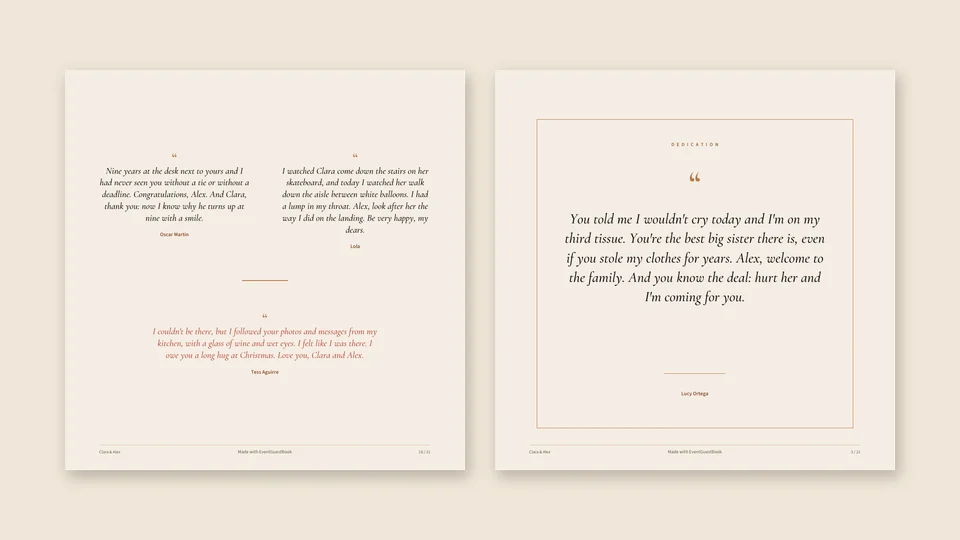
Guest book in Canva or PowerPoint: how to edit your EventGuestBook file
The editable PPTX is a Premium feature and it is not a native Canva project. How to download it, open it in PowerPoint or import it into Canva, and what may change.
7 min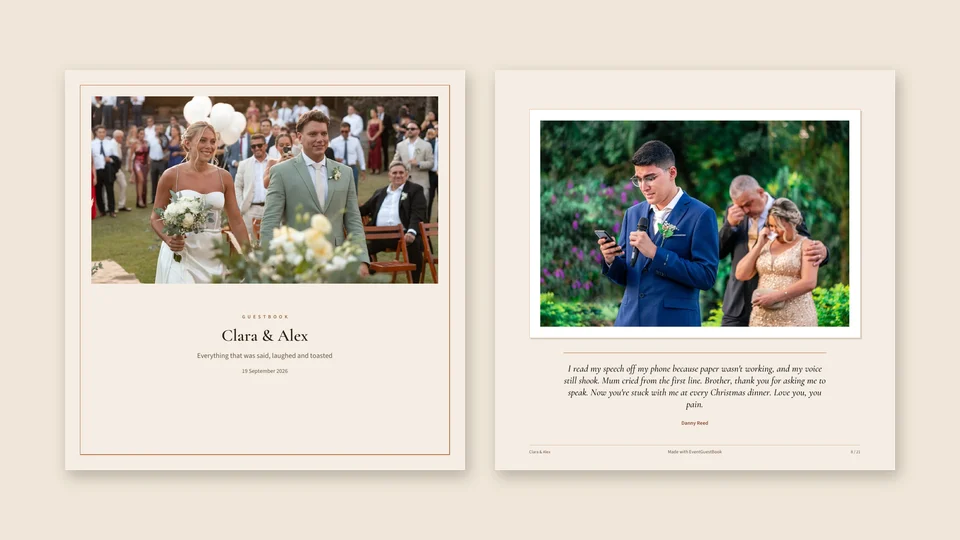
Free digital guest book: what it includes and when Pro is worth it
The free plan is a real trial, but it has a clear cap. What Demo includes, what changes with Pro and how to decide before you hand out the QR code.
6 min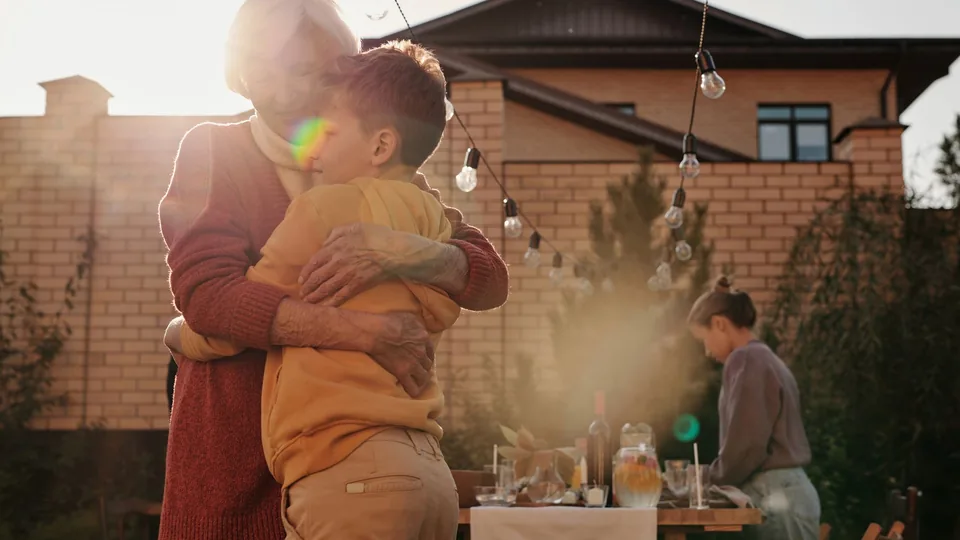
How to collect photos and messages from lots of people without starting a group chat
A new group chat looks like the quick way to gather photos and messages, and it nearly always ends up being the problem. Real alternatives and when each one makes sense.
7 min